Sessions sidebar
The Sessions sidebar
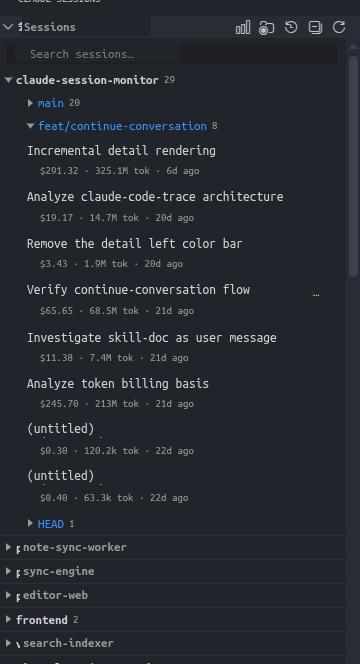
Repo/branch grouping vs. a timeline, the scope toggle, favorites, in-view search, sorting and refresh, and the active-session highlight.
Claude Code stores every session as a JSONL file under ~/.claude/projects/. Over time these pile up across many repositories and branches. Claude Session Monitor scans them and surfaces them in an activity-bar view called "Claude Sessions" — a browsable, searchable list, and since 3.0 a place to start a new session from as well. This article covers that sidebar in detail.
Starting a new session from here
The + in the view title bar opens a fresh conversation in the detail panel, without going back to a terminal first. You pick which workspace folder it should run in — that directory is the boundary the session can read and write within, so it is chosen once up front rather than travelling with every message. The empty state lets you name the session right away; the name is written into the transcript as soon as the session lands on disk.
Since 3.1 the web UI has the same button. A browser has no workspace folders to offer, so it lists the repositories already present in your session history instead — those are real directories on the machine running the service, and picking from them beats typing a long absolute path on a phone. The trade-off is that a directory you have never run Claude in is not on the list; for that case, opening it once from a terminal is quicker anyway.
A session created this way exists only in memory until you send the first message — that is when Claude Code writes the transcript file. It stays fully usable in the meantime: slash-command completion, @ file references and the model list all work from the first keystroke, the same as they do in Claude Code itself.
Two ways to organize: repo/branch vs. a timeline
- Group by repository → git branch — see everything that happened in a specific project.
- Flat, time-sorted list — no grouping, every session in chronological order, for the most recent handful.
Whichever you pick, each group header shows a live count that updates as sessions appear or filters change.
Scope: all repositories or just the current workspace
A toggle at the top of the view switches between:
- All repositories — every repo found under ~/.claude/projects/.
- Current workspace only — just the repo matching the workspace you have open.
When you juggle many projects, "current workspace only" keeps unrelated sessions out of the view, so you're not scrolling past three other codebases to find yesterday's work.
Favorites: pin the sessions you keep coming back to
Hover over any session to star it. Starred sessions appear in a separate Favorites group regardless of the current grouping mode, so the ones you revisit most are always one click away.
In-view search
The built-in search box filters by title, repository name, or branch name. As you type, the list narrows in real time; the grouping stays intact and non-matching entries are hidden. Clear the box and everything reappears exactly as it was.
Sorting, collapse/expand, and refresh
The view title bar bundles a few controls:
- Scope toggle (all repositories / current workspace).
- Sort toggle (by branch / by time).
- One-click collapse all / expand all.
- A manual refresh button.
Rather than clicking refresh, the csm.autoRefresh setting (on by default) keeps the sidebar in sync whenever session files change. When the Sessions view is focused, you can also refresh with Ctrl+R / Cmd+R.
Active-session highlight and timestamps
When a session's detail tab is open and focused, the matching sidebar entry is highlighted automatically, so you always know which session you're looking at.
Timestamps are relative — like "5m ago" — and fall back to an absolute date once enough time has passed, instead of a vague "months ago".
Memory view: your Claude Code memory files
Below Sessions and Favorites, the activity bar now has a Memory view that lists Claude Code's memory files — the instructions Claude reads at the start of every session — so you can open and edit them without digging through your file system.
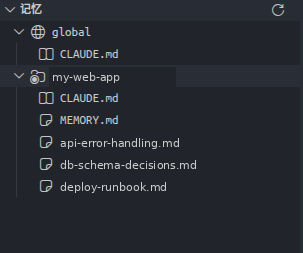
Files are split into two top-level groups:
- Global — your ~/.claude/CLAUDE.md plus every note under ~/.claude/memory/.
- Current project — named after your workspace folder, it lists that repo's CLAUDE.md alongside its per-project memory under ~/.claude/projects/<repo>/memory/.
CLAUDE.md files and memory entries carry different file icons, so the two are easy to tell apart at a glance. Click any file to open it in the editor — it is a normal, editable document — and a refresh button in the view's title bar re-reads everything from disk.
Favorites now follows the same scope toggle as Sessions. Switch to "current workspace only" and the Favorites view narrows to the sessions you starred in the repo you have open.