Session actions
Session actions
Resume in three targets, inline Rename, a recoverable soft-Delete, Star, and Quick Open fuzzy search with keyboard shortcuts.
Once you've found a session in the sidebar, the next step is usually to pick it back up, rename it, or clear it out. This guide covers the hover actions on each row — Resume, Star, Rename, Delete — plus Quick Open for jumping straight to a session by keyboard.
Hover actions on a session row
Hovering over a session entry reveals four actions: Resume, Star, Rename, and Delete. None require opening the detail tab first — hovering is enough, which makes this the fastest way to manage your list day to day.
Resume: three places to pick up where you left off
Resume is the core action — it doesn't just show session content, it puts you back into a live conversation with Claude Code. Clicking it opens a picker for where to continue:
- VS Code integrated terminal — opens inside the editor.
- An external system terminal — hands off to a standalone terminal window.
- The official Claude Code extension — resume through it directly, if installed.
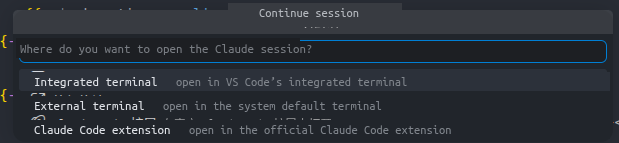
Whichever target you pick, the underlying command is the same:
claude --resume <id>The key detail: this runs in the session's original working directory, not whatever folder your current window happens to have open. So even browsing from an unrelated project, Resume drops you back into the exact repo path the session started in — no manual cd required.
Rename: give it a name you’ll recognize later
Session titles are often auto-generated and hard to tell apart once you have a few dozen. Rename lets you edit the title inline, so you can label it something you'll actually recognize next time you scroll the list or search via Quick Open.
Delete: soft, not permanent
Delete is a soft delete: the session's .jsonl file is moved to /tmp/csm-trash/ rather than erased, so you can recover a mistake from there. But /tmp is usually cleared on reboot, so don't treat it as long-term backup — if a session is worth keeping, star it instead.
Star: pin the sessions you keep coming back to
Right next to Delete is Star, which marks a session as a favorite. Starred sessions show up in a separate Favorites group independent of the current grouping mode, so the handful you return to often are always easy to find.
Quick Open: skip the sidebar entirely
Rather than expanding groups to track a session down, use Quick Open. It runs a fuzzy search across a session's title, repo name, and branch name, so a few keywords usually narrow things down.
Windows / LinuxCtrlAltS
macOS⌘⌥S
Pressing it works from any editor focus — no need to switch to the Claude Sessions sidebar first.