Install
Installing Claude Session Monitor
Three ways to install it — the VS Code Marketplace, the command line, or Open VSX for Cursor and VSCodium — plus requirements and first launch.
Claude Session Monitor is a VS Code extension for browsing, analyzing, and continuing your Claude Code sessions right inside the editor — no more digging through terminal history or hunting for JSONL files by hand. This guide covers the three ways to install it, what you need first, and what to expect on first launch.
Requirements
Before installing, check two things:
- Claude Code is already installed and used at least once, so that ~/.claude/projects/ contains at least one session. If you've never run it, or the directory is empty, the sidebar will simply have nothing to show.
- VS Code ^1.84.0 or newer. Older versions may fail to install the extension or fail to render its sidebar view correctly.
The extension bundles a local service bound to 127.0.0.1 that only reads session files on your machine — your session content never leaves your computer.
Three ways to install
Method 1 — VS Code Marketplace search
The simplest path for most VS Code users:
- Open the Extensions view in VS Code's activity bar.
- Search for Claude Session Monitor.
- Click Install on the matching result.
- Reload the window if VS Code prompts you to.
Method 2 — Command line
If you prefer managing extensions from a terminal, or need to install across multiple machines or in a script:
code --install-extension super-coder-doctor.claude-session-monitorVS Code downloads and installs it automatically; reload or restart the window afterward.
Method 3 — Open VSX (Cursor / VSCodium / Windsurf)
On an editor built on the VS Code codebase but backed by Open VSX — such as Cursor, VSCodium, or Windsurf — search for Claude Session Monitor in that editor's own extension marketplace. The flow is the same; it just pulls from Open VSX instead.
First launch
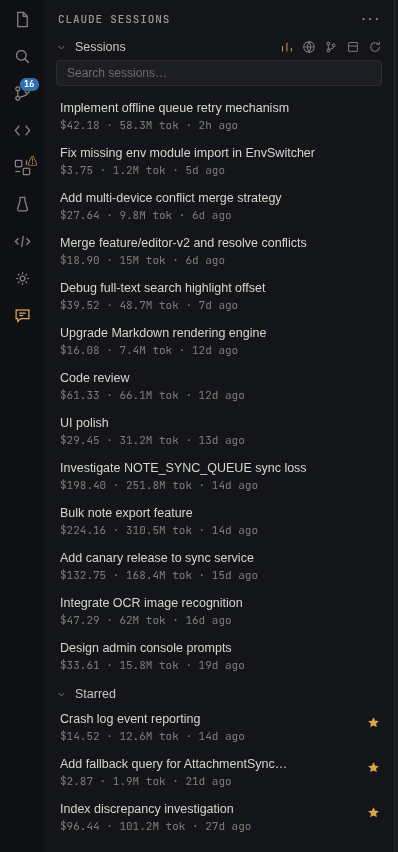
- Click the Claude Sessions icon in VS Code's activity bar.
- The sidebar scans ~/.claude/projects/ and loads your sessions within a few seconds, grouped by repository.
After the first load, the sidebar remembers your expanded groups and scroll position, so you won't need to re-navigate next time.
Troubleshooting
No sessions showing up?
- Confirm that ~/.claude/projects/ actually contains session files produced by Claude Code.
- If your data lives elsewhere, set csm.scanDirectory (default empty = ~/.claude/projects) to the correct path, then reload the window to rescan.
Setting a custom scan directory
Open VS Code settings, search for csm.scanDirectory, enter the path where your session files live, then save and reload the window for it to take effect.