Chat in the panel
Chat in the panel
New in 2.0: continue a session where you read it — send messages, approve tools inline, switch permission mode, model and reasoning effort.
Until 2.0, Claude Session Monitor could show you what a session did; it could not take it further. This release adds a composer at the bottom of the detail panel, so the session you are reading is also the session you can continue — messages, tool approvals, permission modes, model and reasoning effort, all in the same panel, without a terminal.
What 2.0 changes
The panel is driven by the Claude Agent SDK, which ships inside the extension. Your message goes to the same session file Claude Code uses, and the answer streams back token by token into the transcript you were already reading — with its tool calls, sub-agent cards and code-change badges rendered exactly as for past responses.
There is no second copy of the conversation. Continue in the panel, keep going in the terminal later, or the other way round — it is one session either way.
Sending a message
Type in the composer and press ⌘/Ctrl + Enter (Enter alone inserts a newline, so multi-line prompts stay easy). While the answer is being generated a stop button appears beside send; press it to interrupt the turn.
Tool approvals and permission modes
When Claude wants to run a tool that needs your decision, an approval card appears under the transcript with the tool name and its input. Three answers:
- Allow — this call only.
- Always allow — persists the rule, so the same kind of call stops asking.
- Reject — Claude is told you declined and continues without it.
How often you get asked is set by the permission mode, in the panel beside the send button:
- Manual — ask for approval before every edit.
- Edit automatically — file edits are auto-approved, everything else still asks.
- Plan mode — explores the code and proposes a plan first, without editing files.
- Auto — Claude classifies each call: safe actions are auto-approved, risky ones pause to ask.
- Allow everything — never asks for confirmation. Use it only where you trust the whole workspace.
- Deny everything — denies anything not pre-approved, without asking.
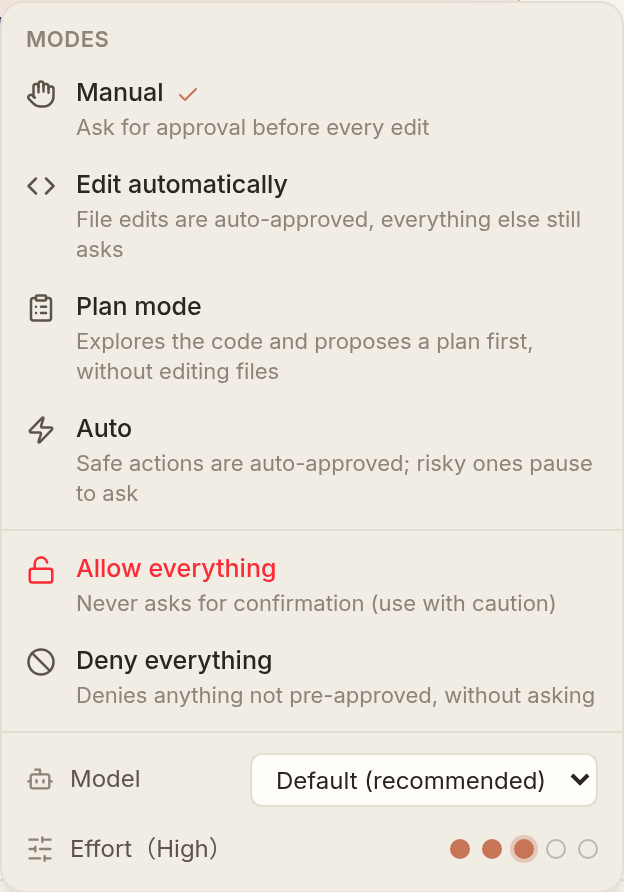
Switching mode applies to the session that is already running, not just to the next one. Claude can also ask you a clarifying question mid-turn; that arrives as an inline questionnaire in the same place as approvals.
Slash commands and @ file references
Type / at the start of the input to open your command list — skills, plugin commands and built-ins — fuzzy-matched and ranked by relevance; Tab or Enter accepts the highlighted one. Each row shows where the command comes from (project, user, or the plugin name), and when two commands share a name, only the one Claude Code would actually run is listed, so what you pick is what executes.
@ works anywhere in a sentence and completes paths from the session's repository. It inserts the path only — Claude reads the file itself when it needs to, instead of the editor pasting the whole file into your prompt.
Images
Paste a screenshot from the clipboard, drop image files onto the composer, or attach them with +. JPEG, PNG, GIF and WebP are accepted, and an image alone — with no text — is a valid message, which is what you usually want when pasting a screenshot.
Model and reasoning effort
The same settings panel carries the model picker and five reasoning-effort levels. Both are remembered per session, and a brand-new conversation inherits whatever you used last, so you do not re-pick them every time.
The model can be switched mid-conversation. Reasoning effort cannot — it is fixed when the underlying process starts, so csm only allows changing it while the session is idle, and the next message starts a fresh process that resumes the same conversation.
While a turn is running
You do not have to wait for the answer to finish before typing the next thing. With a turn in flight, the send button offers two ways to deliver what you just typed:
- Queue — held until the current turn finishes, then handled as the next message.
- Add context — reaches Claude without interrupting what it is doing.
The send button keeps its place and appearance in both states; the only thing that appears while a turn runs is the stop button beside it.
Since 3.0 a message delivered either way leaves a receipt above the composer, tagged with how it was sent. Without it the message really did vanish from view: a queued message is not in the transcript until the current turn ends and consumes it, and the input box has already been cleared, so all you saw was your text disappearing. The receipt is display only — the SDK has no way to un-queue or edit a message once it is in, and the receipt says as much rather than offering a delete button that could not work.
Notifications when a turn needs you
A long turn is a good moment to go and do something else, which is precisely when an approval card appears and waits. From 3.0 CSM tells you: a notification fires when a tool is waiting for your approval, and again when a turn finishes while you were elsewhere.
Notifications are suppressed while the panel is focused, so it never talks over a conversation you are already watching. Use the csm.notifications setting to pick how much you want: all (approvals and finished turns), asks (approvals only), or off.
Rewind files to a point in the conversation
Every message of yours in the transcript offers Rewind files to here. It runs in two phases: first a preview of exactly which files would be restored and how, and only after you confirm does anything on disk change.
Context usage and plan quota
The composer toolbar shows a context pie for the current conversation; clicking it opens the full per-category breakdown, read from the SDK rather than estimated from the transcript. Beside it, claude.ai subscriptions also get their 5-hour and 7-day rate-limit utilization.
Both numbers update on their own. From 3.0 the plan quota is driven by the rate-limit events the SDK pushes, so it moves the moment the source changes instead of waiting for the current turn to end; the context breakdown is re-read whenever a turn finishes, rather than sitting on a stale figure until you hit refresh.
Rate-limit data exists only for claude.ai subscriptions (Pro / Max / Team / Enterprise) and only after the session has made at least one real call. API key, Bedrock and Vertex users have none, so the indicator simply does not appear rather than showing an empty control.
On the web, and on your phone
Everything above used to be VS Code only. Since 3.0 the web UI has the same composer: slash-command completion, @ file references, permission modes, images, model and effort. It is the same React code in both places — the extension panel is that same web UI embedded in a webview — so the two do not drift apart feature by feature.
Below 1024px the composer turns into a bottom sheet that stays above the software keyboard: the keyboard height is measured and fed into the layout rather than hoped for. Enter always inserts a newline on a phone and sending goes through the button, because on a touch keyboard the return key is where your thumb already is and losing a half-written message to it is not a fair trade. The detail page is sized with 100dvh and viewport-fit=cover, so an iOS address bar collapsing no longer pushes the input out of view.
3.1 tightens the phone layout further — the whole UI scales to 0.85 so elements fit back onto one line instead of being squeezed into more rows, the header gives its width to the session title and collapses as you scroll, and the dashboard drops to fewer columns on a narrow screen instead of stacking stat-card labels one character per line.
Requirements
Chatting in the panel needs Claude Code installed and logged in as usual. The SDK bridge that drives it ships inside the extension, so there is nothing extra to install and no API key to configure — the session runs under the Claude Code you already use.
Since 3.0 the SDK is the only driver. Earlier versions quietly fell back to driving the Claude Code CLI when the bridge failed to start, and approvals, slash completion, model switching, reasoning effort, queued delivery, context usage, plan quota and file rewind all vanished with it — without a word of explanation. That is exactly where the puzzled question, why does this machine have half the features, came from. The bridge is now resolved when the service starts, and a failure is reported outright instead of hiding behind a degraded panel.
One more precondition is checked per session. A session whose working directory no longer exists on this machine is marked read-only the moment you open it, with the missing path shown. This is asked session by session rather than guessed from how you run CSM — the web build served from a server is the obvious case, but a worktree you deleted on your own machine hits it just the same. Without the check you would type a whole paragraph and only find out on send.